Overview
When using Windcave as your credit card processor, if an online booking needs to be cancelled and a payment needs to be refunded, the payment must be refunded from the Payline Account before cancelling the booking.
Steps
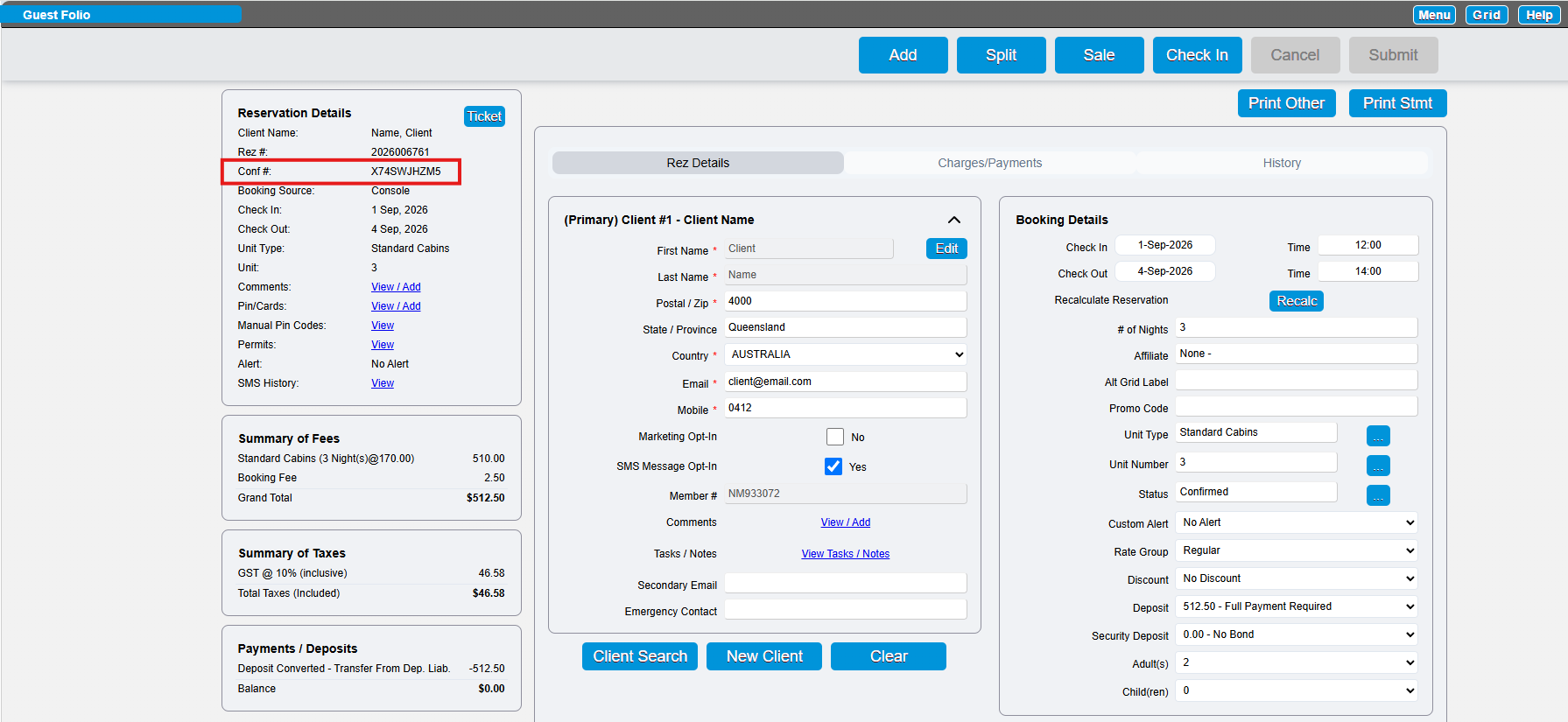
Merchant Ref
- Open the Guest Folio of the reservation.
- Locate the Confirmation number within the Till Tape. This number matches the Merchant Ref transaction.
- Write down the Confirmation number or highlight and copy it.
Payline Account
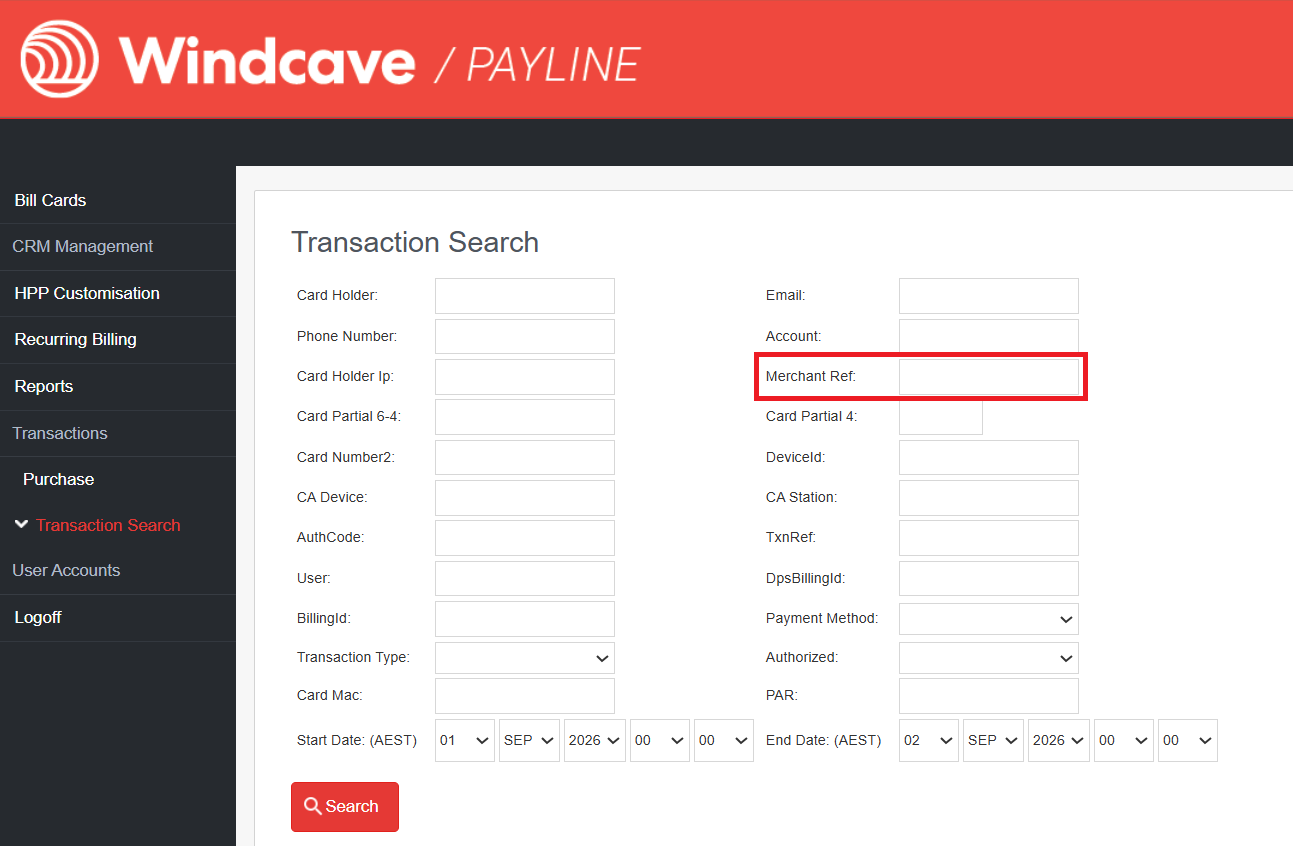
- Open your Payline Account.
- Click on the Transactions list on the left and select Transaction Search.
- Enter the Confirmation number into the Merchant Ref field.
- Adjust the date range to view all transactions and click Search.
- Select the transaction.
- Click on the Refund Transaction tab and then click Refund.
- Enter the amount to be refunded.
- Enter the Card Holder Email (copy from the Guest Folio).
- Press Submit.
The transaction will be processed, and you will receive a response. Once the refund is completed, return to RezExpert.
Cancelling the Booking
- Within the Guest Folio, click on the Status option to select Cancel Rez.
- Select the appropriate cancellation reason.
- Select the Other Payment tab and choose the Credit Card type.
- Ensure the displayed amount matches the refunded amount.
- Click Post.
- Complete the cancellation as required and click Submit to finalize.