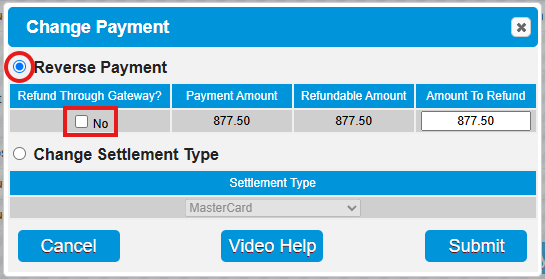
Overview
When the wrong payment type is selected for a payment, it can be corrected prior to the End of Day Cutoff being completed, and the reservation being Checked Out.
Steps
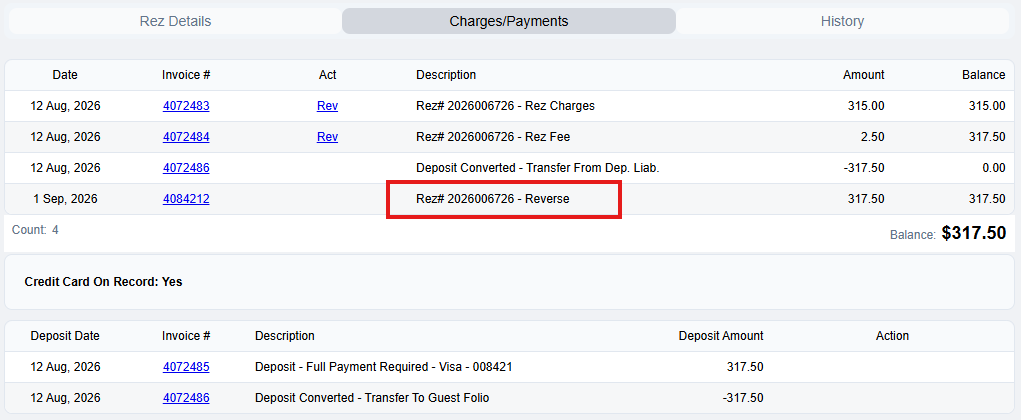
If the Description displays as "Deposit Converted":
- Reverse the Deposit:
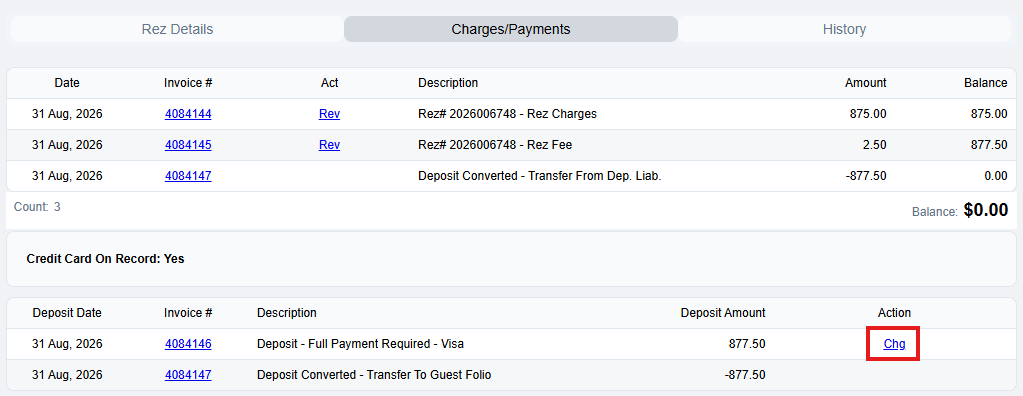
- Navigate to the reservation's Charges/Payments tab.
- If it displays as "Deposit Converted" within the Description section, the deposit needs to be reversed.
- Click on "Chg" next to "Deposit Converted - Transfer From Dep. Liab."
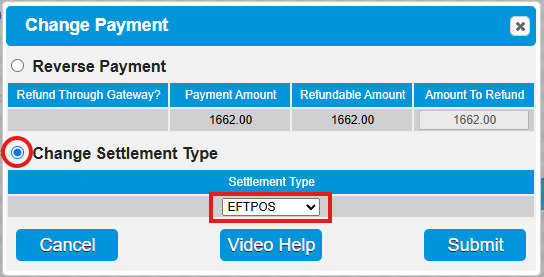
- Change Payment:
- The Change Payment box will appear.
- Click on the "Change Settlement Type" option to select the correct payment type required from the dropdown menu.
- Click "Submit."
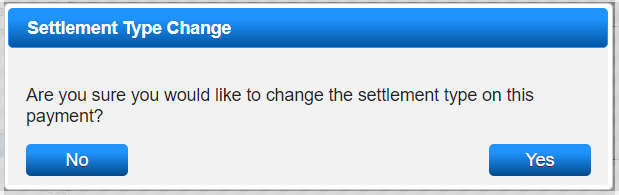
- Confirmation:
- Click "Yes" on the pop-up message.
If the Description displays as "Payment Made":
- Change Payment Type:
- Navigate to the reservation's Charges/Payments tab.
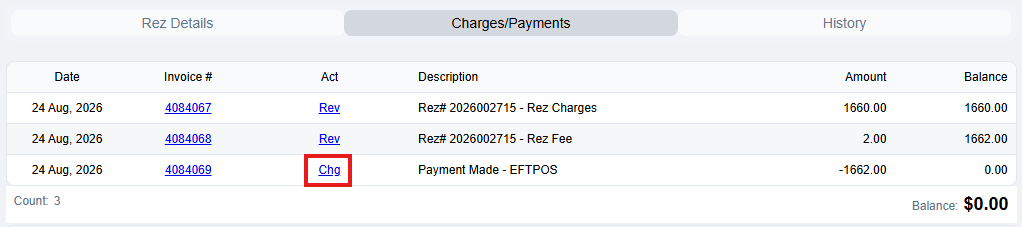
- If it displays as "Payment Made" within the Description section, click on "Chg" next to "Payment Made - Payment Type."
- Select Change Settlement Type:
- Click on the "Change Settlement Type" option to select the correct payment type required from the dropdown menu.
- Confirmation:
- Click "Yes" to the pop-up message.
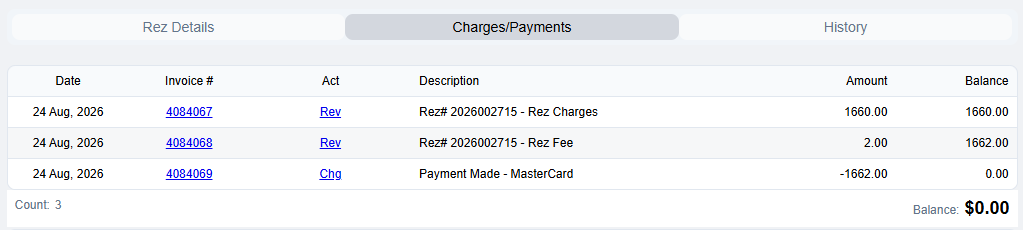
- Verify Payment Type:
- The payment will now display under the new payment type selected.
Troubleshooting
After End of Day Cutoff has been completed
- Once the End of Day cutoff has been completed, payments cannot have the payment type changed to another payment type.
- The payment will need to be reversed off, and a new payment must be applied to the reservation using the correct payment type.