Overview
How to take and hold advance power payments for Long Term/Permanent residents in RezExpert, using either an Accounts Receivable (AR) Account or a Security Deposit, and how to apply the credit to power charges when due.
Prerequisites
- If this is the first Security Deposit set up for the business, see Help Document – Manually Applied Security Deposit for the required Setup steps.
- Remember to assign GL Codes to the Security Deposit for report purposes.
Steps
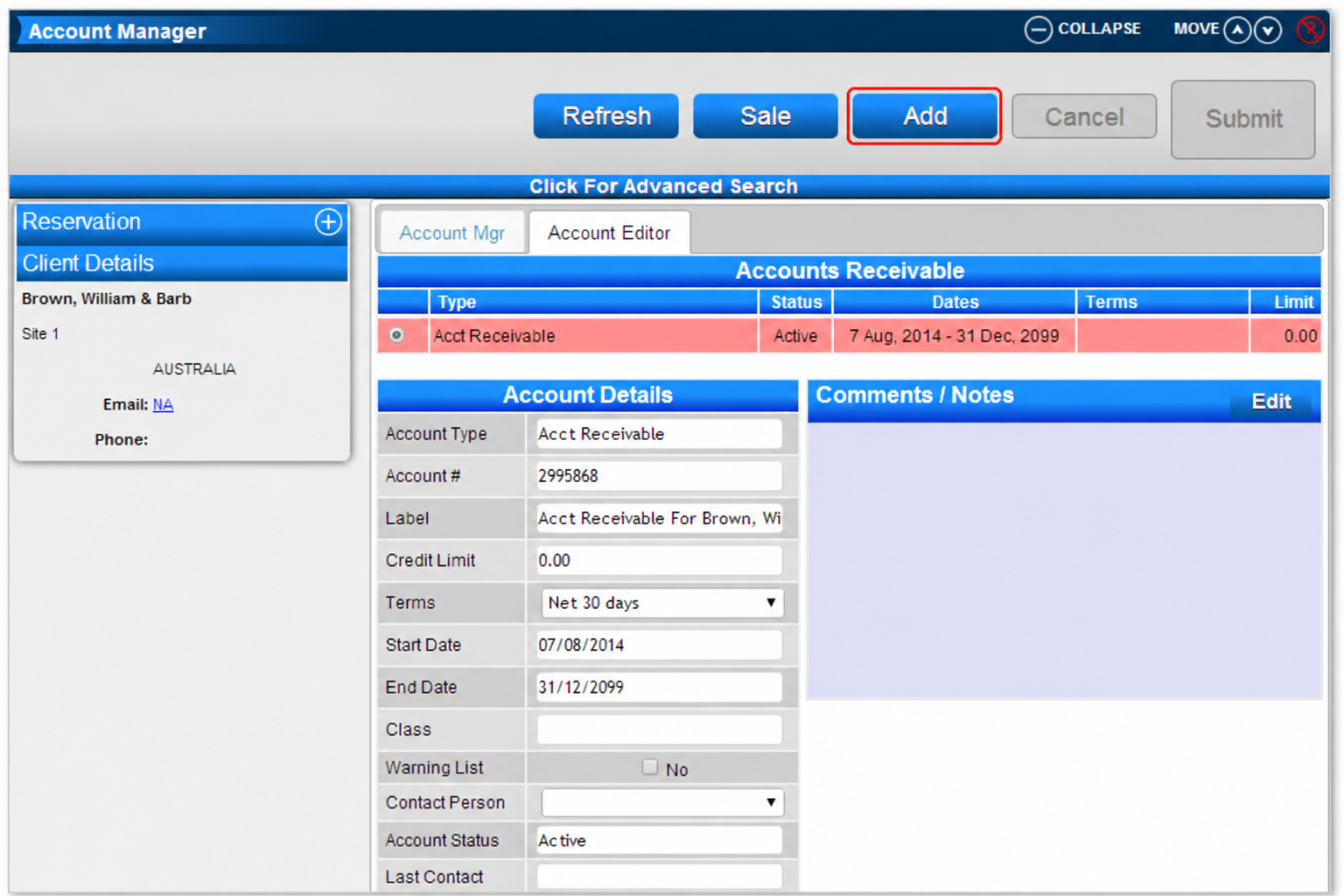
- Option One — Create an Accounts Receivable (AR) Account for the client: Click Admin from the Menu Bar, expand Account Manager to find the client, then click Add to add the AR Account.
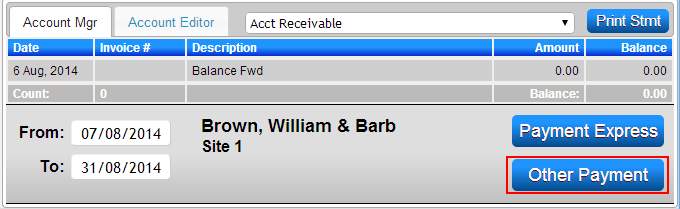
- Option One — Record the resident’s advance power payment in the client’s AR Account (not the Guest Folio): In the AR Account click Payment (e.g., Other Payment or Payment Express), enter the Amount being paid in advance toward power, and save so the AR Account goes into credit.

- Option One — Apply the AR credit when power is due: In the resident’s Guest Folio, open the Charges/Payments tab and click Payment. Select the Payment Type AR Transfer, enter the amount to be used, click Allocate to allocate it to the desired charges, then click Post and Submit to finalise.

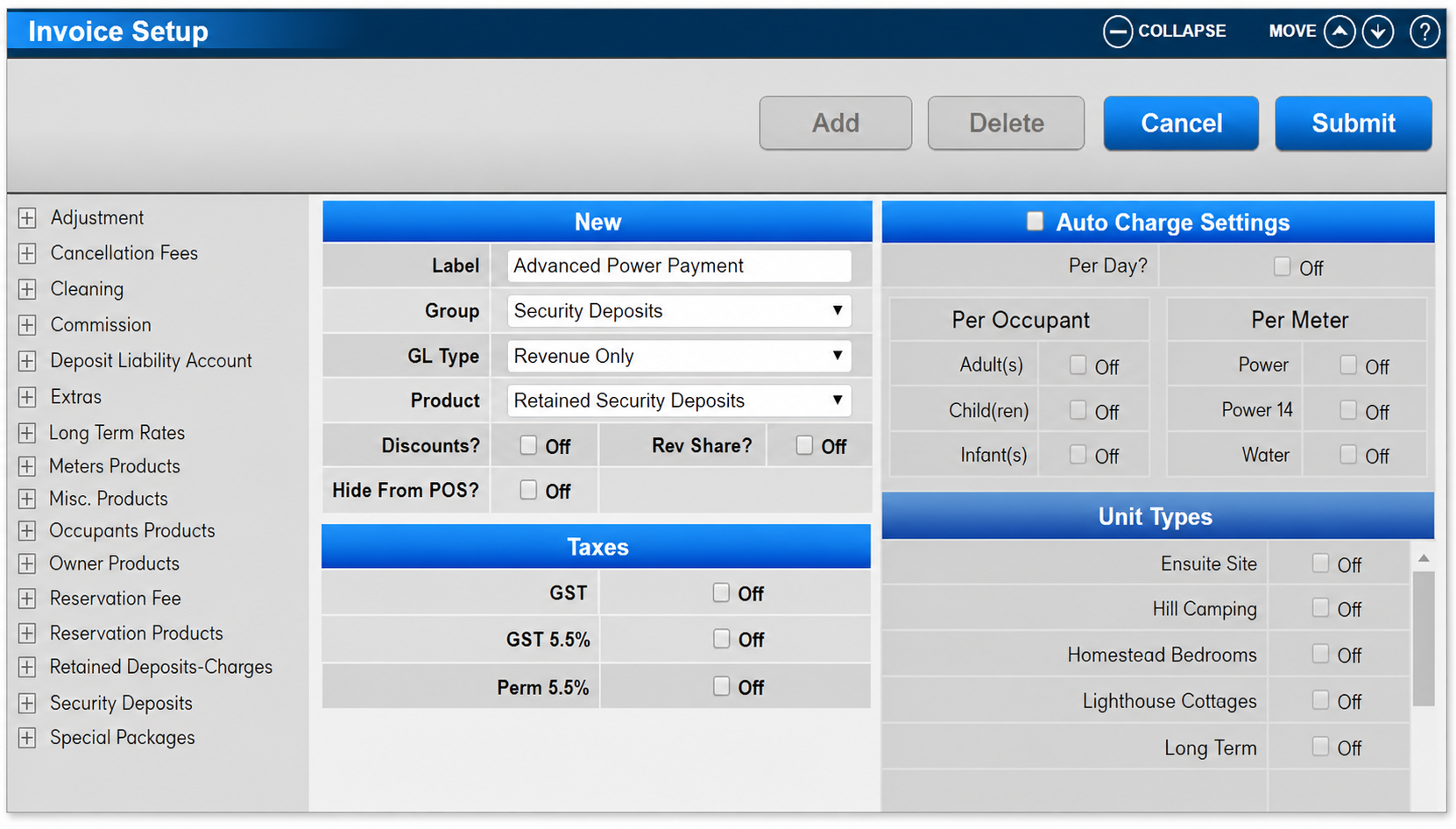
- Option Two — Set up a Security Deposit product for advance power: Click a Menu button, select the Setup tab, and click Products Setup. Click Add, then enter Label: Advanced Power Payment; Group: Security Deposits; GL Type: Revenue Only; Product: Retained Security Deposits. Click Submit to finalise.
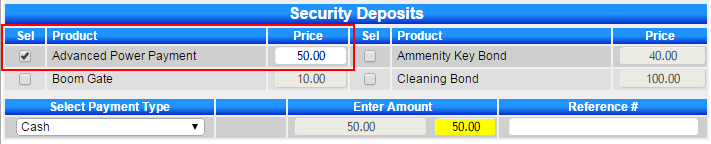
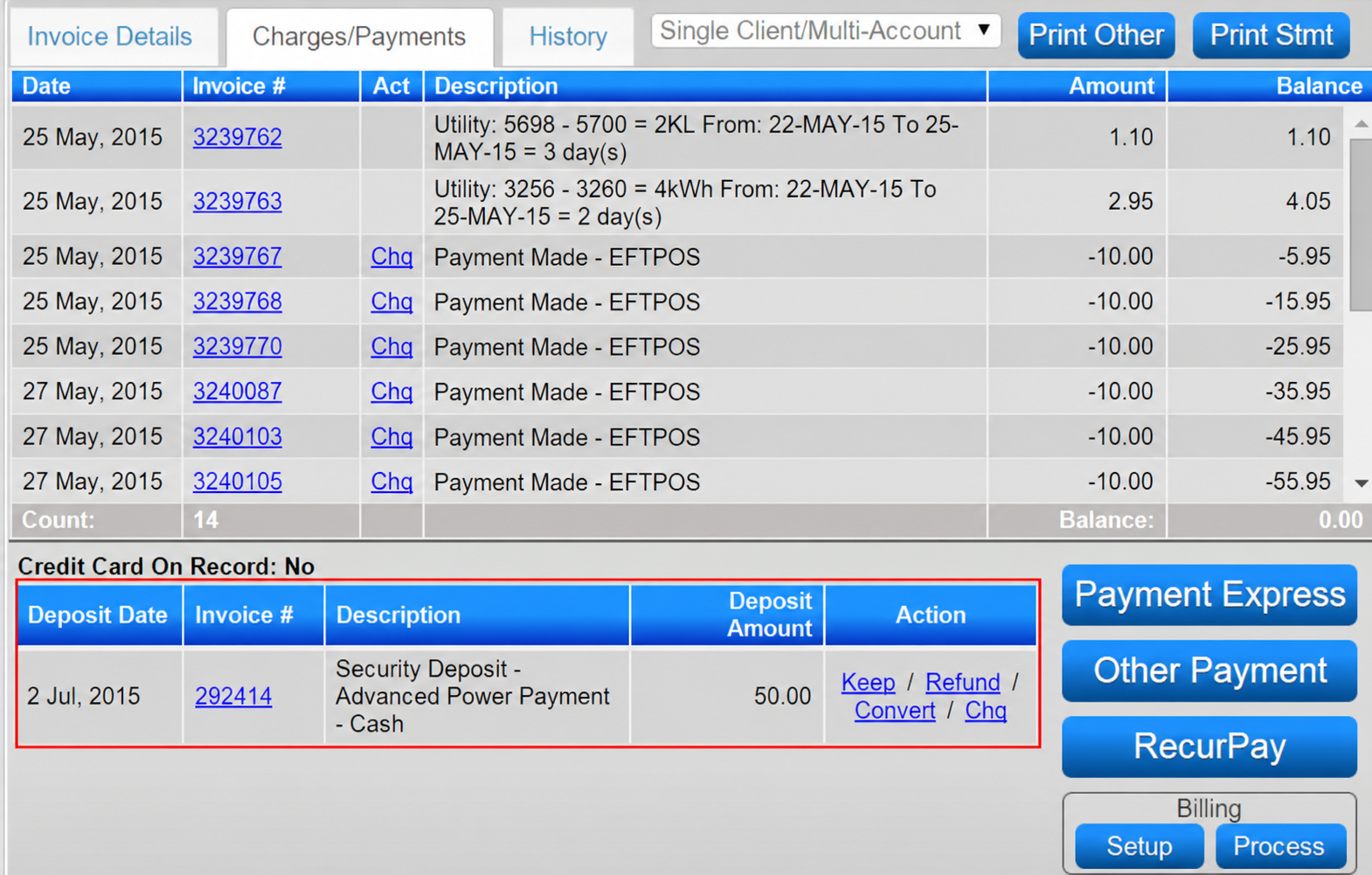
- Option Two — Take the advance payment from the Guest Folio: In the client’s Guest Folio, go to the Charges/Payment tab and click Payment. In Security Deposits, tick Advanced Power Payment, enter the amount to be paid, select the Payment Type used, and click Post and Submit to finalise.
- Option Two — Apply the deposit to the reservation balance when power charges are processed: In the Guest Folio, select the Action Convert next to the Security Deposit Payment to convert the amount to a payment automatically.
Troubleshooting
- Option One payments must be entered in the client’s AR Account (not the Guest Folio) for the credit to be available later.
- If the AR credit does not reduce the folio balance, in the Guest Folio choose Payment > Payment Type AR Transfer, then Allocate, Post, and Submit.
- If this is the first Security Deposit you are setting up, follow the Help Document – Manually Applied Security Deposit for the required setup steps.
- If the Security Deposit is missing from reports, assign GL Codes to the Security Deposit.