Overview
This document explains how to create, activate, process, review, edit, suspend, and reverse recurring payments using RecurPay. RecurPay can apply payments in batches to reservations or client accounts receivable (AR) accounts. It is useful for clients who regularly pay by direct deposit or receive government-assisted payments.
Prerequisites
- RecurPay must be enabled for your RezExpert environment by DigitalRez.
- Access to Admin > Periodic Billing.
- A client record with an existing billing policy, or the information required to create one.
- The payment schedule, payment amount, payment type, and client reference number.
Steps
- From the menu bar, click Admin.
- Expand Periodic Billing and select 1. Billing Policy Setup.
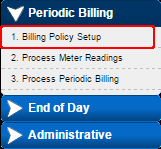
- Expand the Billing Policy Setup panel and search for the client.
- If the client already has a billing policy, select the policy and click Edit. The page will move to the client's policy in the Billing Policy Setup panel.
- Within the Billing Policy Setup, click RecurPay.

- Complete the Recurring Payment Setup form:
- Start Date: Select the date the policy begins.
- End Date: Select the date the policy ends.
- Next Payment Date: Select the next date the payment or direct deposit is expected.
- Interval / Time Period: Select the payment frequency. For a weekly payment, set Interval to 1 and Time Period to Weekly.
- Amount: Enter the amount received with each payment.
- Payment Type: Select the method the client uses to pay.
- Client Reference #: Enter a reference number or label. This label appears with the payment invoice or receipt in the client's Guest Folio, for example, Centrelink Transfer.
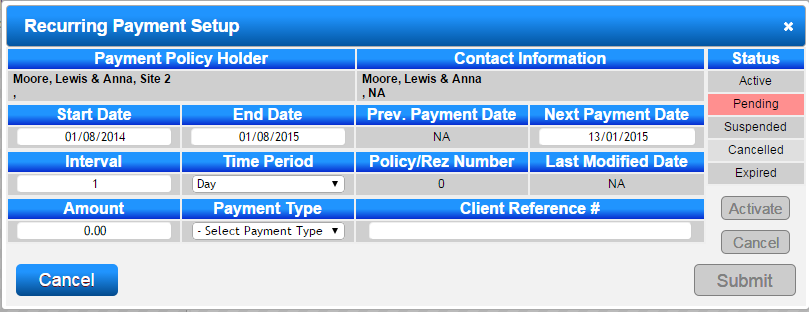
- Click Submit to save the setup. The RecurPay policy will have a Pending status.
- Click Activate to activate the policy.
- To process due RecurPay policies, open Admin, expand Periodic Billing, and select 3. Process Periodic Billing.
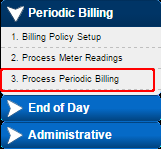
- Expand Date Range and select RecurPay from the Policy Type dropdown.
- Review the policies due within the selected date range. Select All, or select an individual policy, and click Process.
- The default Batch Invoice Label is RecurPay. Change the label before processing when another invoice label is required.
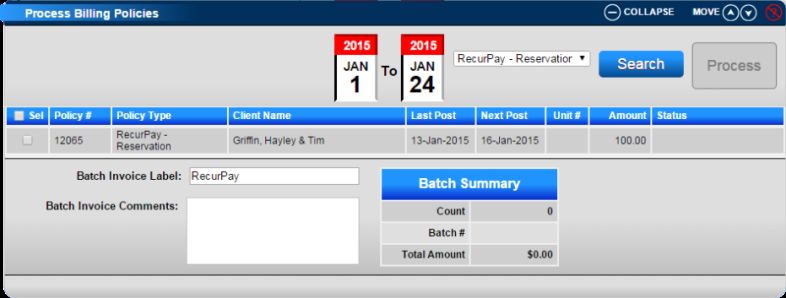
- Review the policy amounts and Post Date before processing. Each RecurPay batch is automatically confirmed.
- To review a confirmed batch, expand Batch Review, select Batch Completed from the Status dropdown, and click Search. Completed RecurPay batches use the batch label RecurPay to distinguish them from periodic billing batches.
- Open the client's Guest Folio and select the Charges/Payments tab. The RecurPay payment appears under the payment type selected during policy setup.
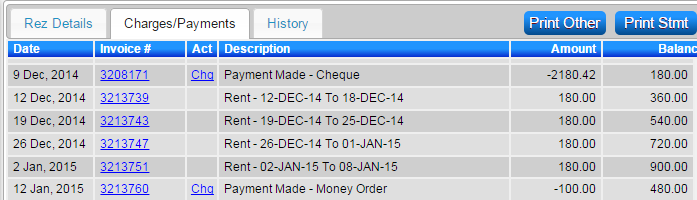
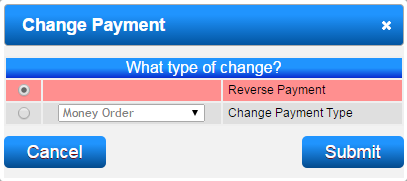
- To reverse an incorrectly processed payment before the daily End of Day cutoff, open the client's Charges/Payments tab, click Chg, and select Reverse Payment.
- To edit a RecurPay policy, open the client's Charges/Payments tab and click RecurPay. Make the required changes and click Submit.
- To suspend the policy, open it through the RecurPay button and click Suspend.
Troubleshooting
- RecurPay is unavailable: Contact DigitalRez to have the feature enabled for your environment.
- A posting has a Failed status: Review the client's reservation. A common cause is that the payment would place the reservation into credit, which is not allowed under cash-based accounting when there are no charges, or insufficient charges, for the payment to offset.
- A RecurPay policy fails during processing: Confirm that all rent billing policies have already been processed and confirmed before processing the RecurPay policy.
- A payment was processed incorrectly: Reverse the payment from the client's Charges/Payments tab before completing the daily End of Day cutoff, then correct the policy as required.
- A payment is not visible: Check the client's Guest Folio > Charges/Payments tab and verify the payment type selected in the RecurPay policy.