Adjusting Payment Types on Checked-Out Reservations
Last modified on:
Overview
Correct a payment that was posted under the wrong Payment Type after the reservation has already been checked out by reversing it with a negative POS sale, then reposting the payment with the correct Payment Type.
Prerequisites
- A checked‑out reservation that requires a Payment Type correction.
Steps
- Open the reservation’s Guest Folio and switch to the Charges/Payments tab.
- Note the amount paid, the Payment Type used, and the reservation’s Unit Type.
- On the Availability Grid, click the POS button to open New Sale/Quote.
- In POS, search for the client (helps with transaction identification on reports).
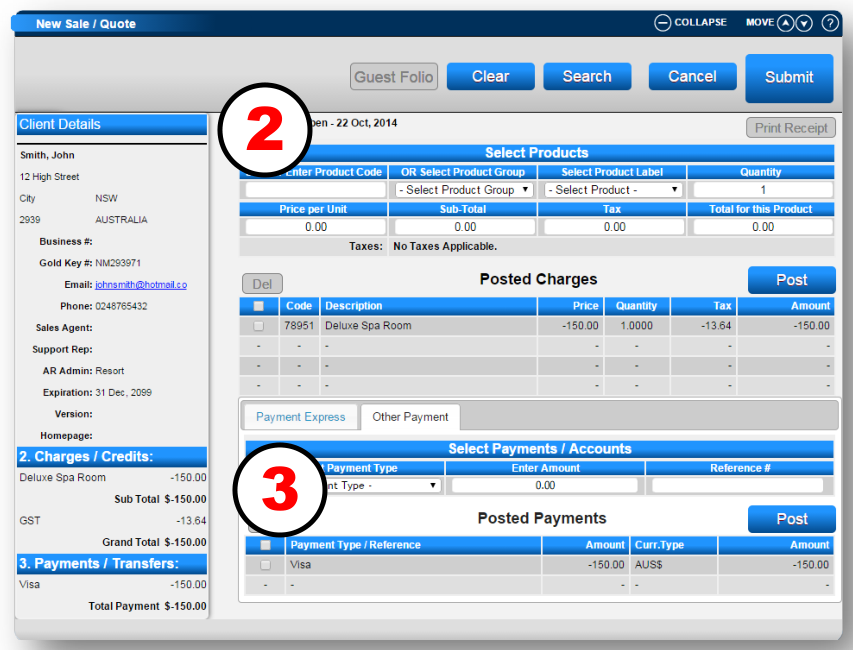
- In Select Products, set Product Group to Reservation Products.
- Select Product: choose the Unit Type of the reservation.
- Enter the amount to be adjusted as a negative amount.
- Click Post to post the charge.
- Select the Other Payment tab.
- Choose the incorrect Payment Type used originally.
- Click Post, then Submit to finalise the sale.
- Click New at the top of the panel to begin the second (correcting) sale.
- Select the same Product Group (Reservation Products) and the same Product (the reservation’s Unit Type).
- Enter the amount as a positive amount.
- Click Post to post the charge.
- Select the Other Payment tab.
- Select the correct Payment Type used by the client to make the payment.

- Click Post, then Submit to finalise the sale.
Troubleshooting
- If you need to identify the transaction on reports, use Search to find the client in POS before posting.