Overview
This document explains how to use the Channel Rate Plan area in RezExpert. It covers reservation reporting by booking source, inventory allocation, the occupancy overlay, occupancy filtering by unit type, the occupancy spectrum, and exporting occupancy data.
Prerequisites
- Access to the RezExpert Menu Bar.
- Permission to open the Channel section.
- Permission to view reservation, inventory allocation, rate plan, and occupancy information.
- Microsoft Excel or another compatible spreadsheet application to review exported occupancy data.
Steps
- From the RezExpert Menu Bar, click Channel to open the Channel Rate Plan section.
- Review reservations in the Channel Reservation Manager. The panel groups reservations according to the selected source tab.
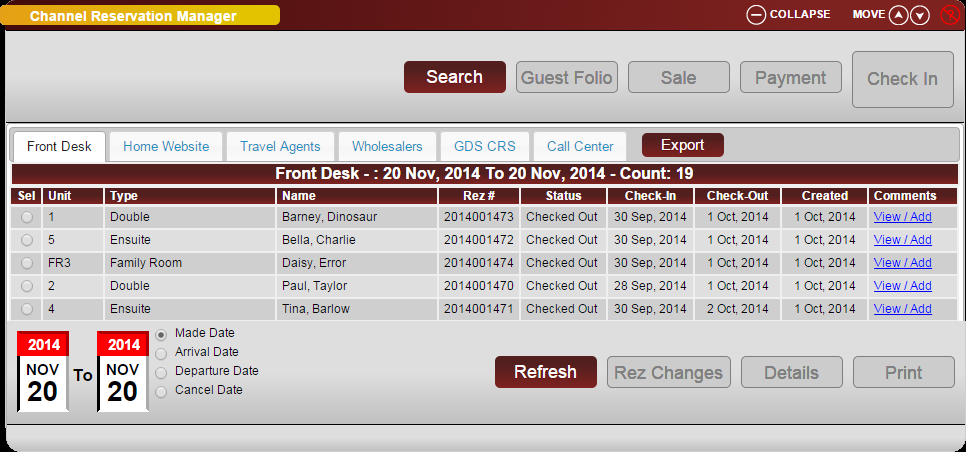
- Select the appropriate reservation source tab:
- Front Desk: Reservations created from the console.
- Home Website: Reservations created through the Online Booking Interface, also called RezRobot.
- Travel Agents: Reservations associated with travel agencies.
- Wholesalers: Reservations associated with wholesalers.
- GDS/CRS: Channel-based reservations, such as Booking.com or Expedia.
- Call Center: The source document identifies this tab as under construction.

- Adjust the reservation date range as required, then click Refresh to list reservations created during the selected period.
- Select a reservation and click Rez Changes to view its change history.
- Open the Inventory Allocation panel to review how many units of each Unit Type have been allocated to inventory segments, such as a wholesale inventory segment.
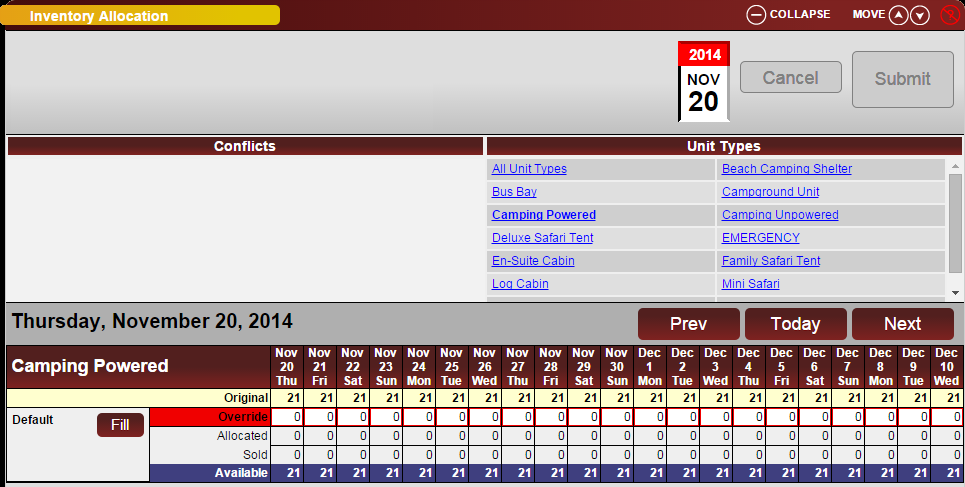
- Select a Unit Type or All Unit Types to display inventory allocation for the upcoming two-week period beginning from the selected date.
- To change the starting date, click the calendar and select another date. The inventory allocation display refreshes automatically.
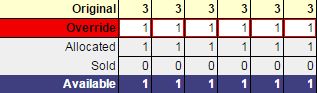
- Interpret the inventory values as follows:
- Original: The original unit count for the selected unit type.
- Override: The number of units withheld from inventory. This is displayed as a positive number.
- Allocated: The number of units assigned to another inventory segment.
- Sold: The number of units with booked reservations.
- Available: The number of units still available to be sold or booked.
- In Rate Plan View, select View Occupancy to display a daily occupancy-percentage overlay on the rate calendars. When no rate plans or channels are in use, the occupancy overlay may be displayed by default.
- Review the six-month occupancy calendar. The default All Types selection shows the property's total occupancy percentage.
- Use the navigation controls to change the displayed period:
- Click > to move forward.
- Click < to move backward.
- Navigate backward to review and export historical occupancy data.
- To view occupancy for one unit type, select it from the Select Unit Type dropdown. The calendar updates to show the occupancy percentage for that unit type.
- Use the Occupancy Spectrum to interpret the calendar colors. The displayed color changes as the occupancy percentage increases.
- Review the full occupancy overview, including the unit-type selector, occupancy overlay option, spectrum, and six-month calendar.
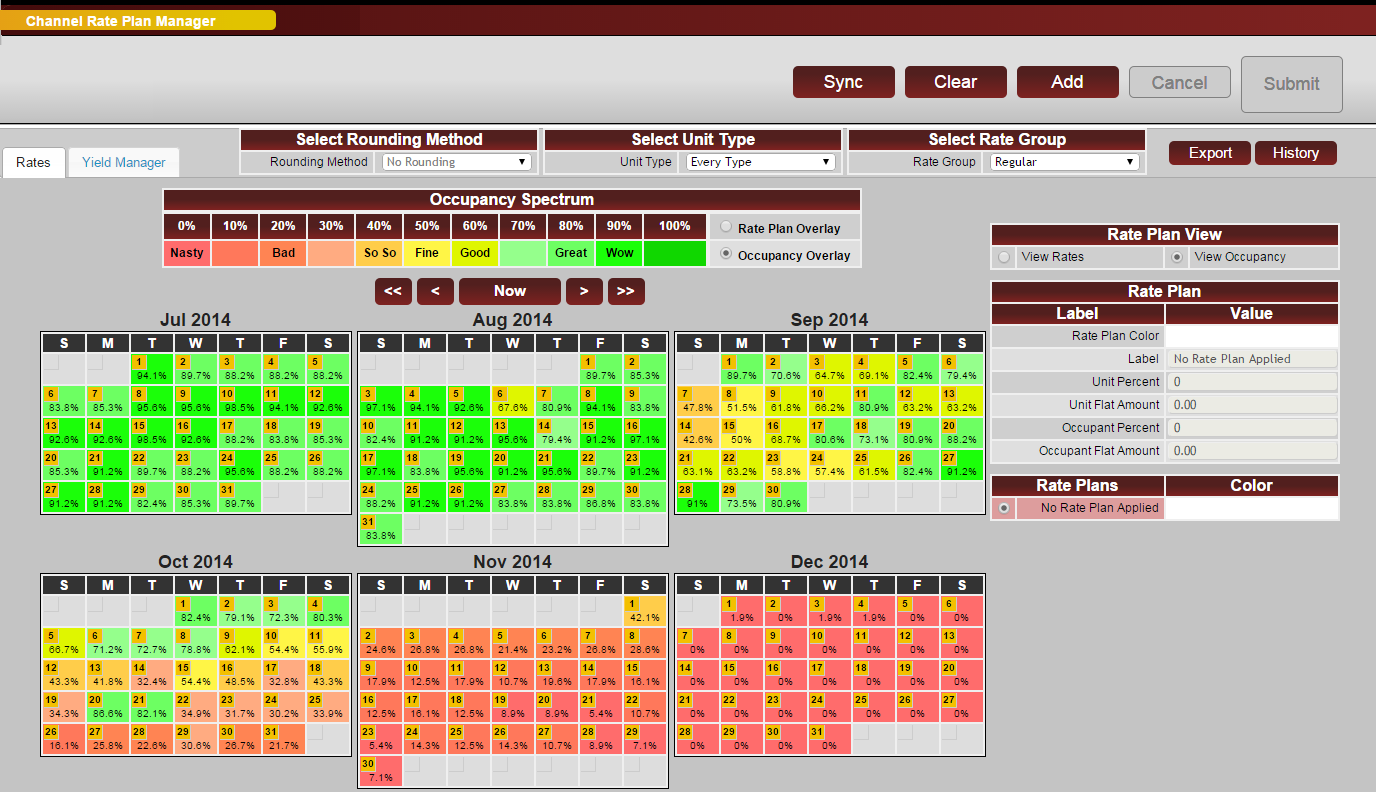
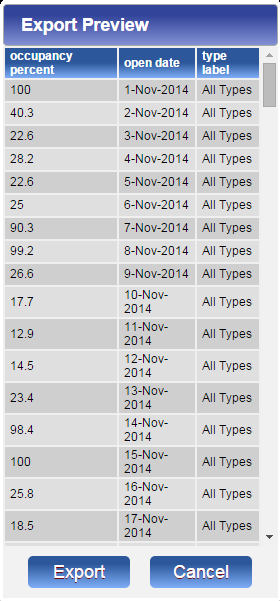
- Click Export to generate occupancy data for use in an Excel spreadsheet. The exported data can be used for historical and future occupancy comparisons.
Troubleshooting
- If no reservations appear, verify the selected reservation-source tab and date range, then click Refresh.
- If Rez Changes is unavailable, select a reservation before clicking the button.
- If inventory totals are unexpected, confirm the selected unit type, inventory segment, and starting date.
- If the occupancy overlay is not visible, verify that View Occupancy is selected in Rate Plan View.
- If the occupancy percentages are too broad, choose a specific unit type from the Select Unit Type dropdown instead of All Types.
- If an export does not open, confirm that a compatible spreadsheet application is installed and that downloads are permitted by the browser.