Guest Folio
Last modified on:
Overview
The Guest Folio contains all the information about the booking - Client Details, dates, payments etc.
Steps
To access the Guest Folio for a client:
- On the Availability Grid, right click on the booking and select Guest Folio.
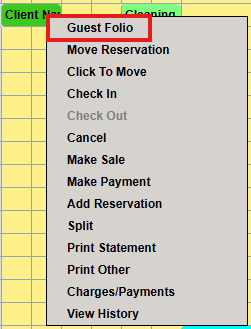
or
- On the Availability Grid, left click on the booking and click on a Guest Folio button.
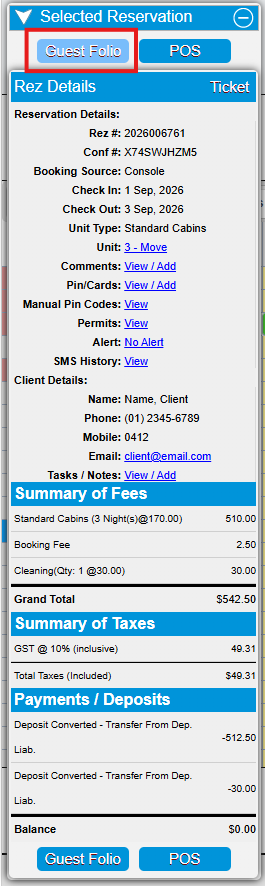
Layout
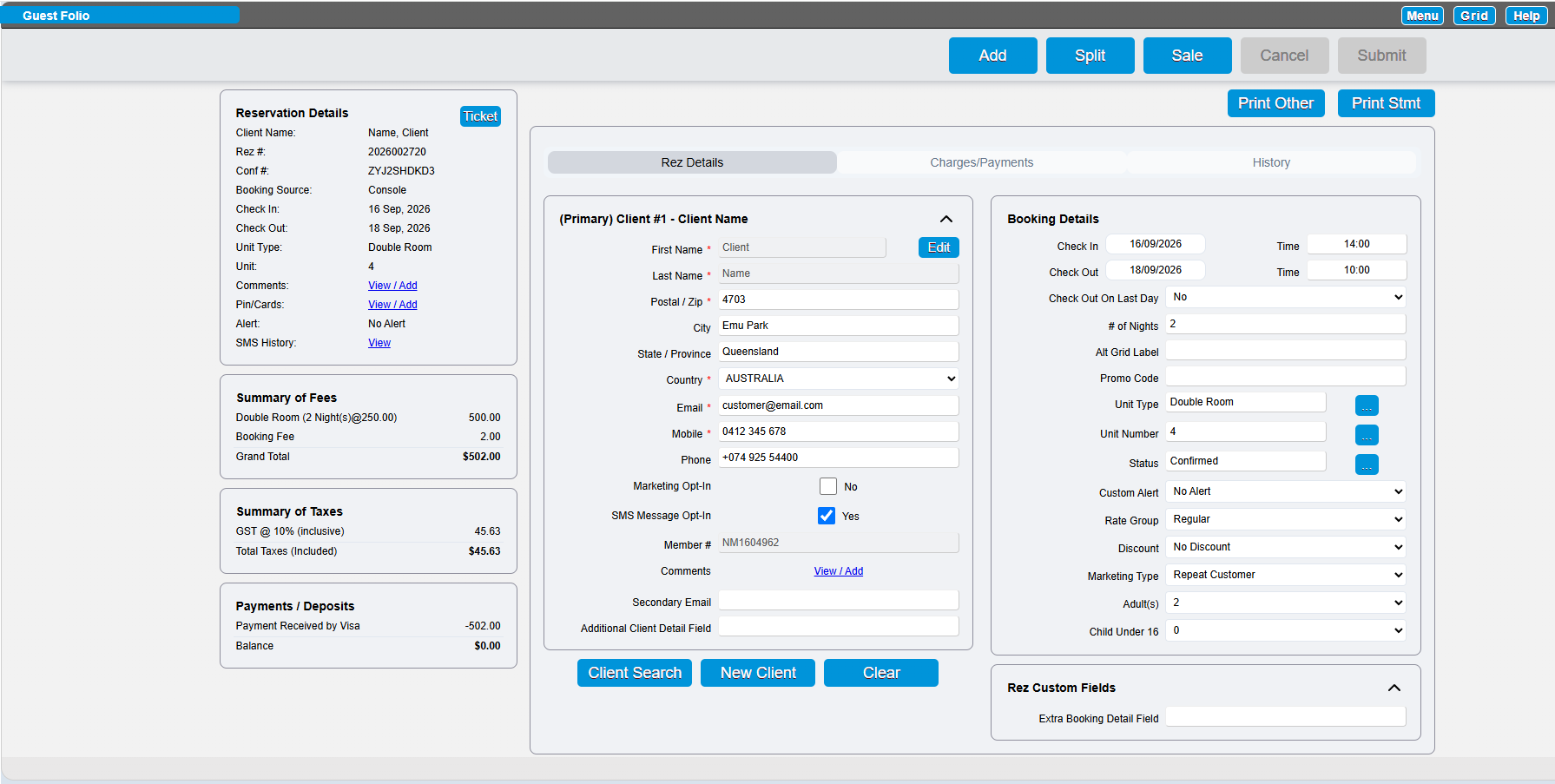
The Guest Folio is broken into three tabs:
- Rez Details
- Charges/Payments
- History
Rez Details
Contains all the client information and booking details.
Charges/Payments tab
The Charges/Payments tab contains the booking charges and payments.
History tab
The History tab contains all the booking history.
Print Other & Print Stmt Button
The Print Other and Print Stmt Buttons will allow you to print receipts, statements and send emails to customers.
If SMS functionality has been enabled, you can also send SMS messages to the client via these buttons.
Rez Details tab
The Rez Details tab displays the Client details on the left and the Booking Details on the right.
Any mandatory client or custom fields will display a * next to the field label.
Contact details for the client such as Address, Email, Mobile etc can be edited within any booking, at any stage.
These can also be edited by clicking on the Edit button next to the client’s First Name.
Any Custom Fields created will also display within their section.
Client custom field data will be recorded within the Client’s Record and will display on every booking for the customer.
Rez custom field data will be recorded on that particular booking only.
Charges/Payments tab
All of the reservation’s charges and payments will display.
The Charges will display in descending order of oldest to newest; by date.
The payment options will display as buttons on the right-hand side.
If the business isn’t connected to a Payment Gateway, the button will be Payment. *
This will allow operators to apply the payment to the booking or sale, using the payment type selected.
If the business accepts credit card payments via a Payment Gateway, there will be a button with the Payment Gateway name.
* Throughout this guide, this button can also be referred to as Other Payment button, instead of Payment button.
The button label changes from Payment to Othe Payment when a credit card processor is connected to RezExpert.
Credit Card On Record Yes/No: This will indicate if you are securing storing the customer’s credit card. You will be able to charge this encrypted credit card token for future payments/charges etc.
Unresolved Payment Transaction
Unresolved Payment Transaction: If there is a red link displaying Unresolved Payment Transaction, this indicates that there was an issue when the customer was paying online.
This could be caused by a number of different factors such as the customer closing down the payment screen, the internet dropped out, or the communication from the payment gateway processor to RezExpert was not completed.
It is important that you review your payment gateway Online Portal account to verify if the payment was successful or failed. After reviewing the payment gateway portal, you can click on the Unresolved Payment Trans link. This will direct you to the Payment Gateway Manager; select the transaction and click Resolve. This indicates that you have reviewed the transaction.
If the payment was successful within the payment gateway, you can apply the payment to the booking using the Other Payment button. Select the credit card type used, enter the amount paid and click Post and Submit to finalise.
History tab
All of the booking history is automatically recorded within the History tab; such as who/when it was made, any changes to the bookings, any emails sent out of the Guest Folio.
For example: When an operator changes the dates of the booking, all of the changes are automatically recorded in the History tab.
Reservation Charges that have been reversed off will be displayed in the History tab.
Print Other/Print Statement Buttons
The Print Other and Print Statement buttons will allow you to email and SMS emails, receipts, etc. to the customer.
Send Manual Email Communication
The Send Manual Email Communication option will display at the top of the Print Other and Print Statement buttons.
It can be used to compose and send a custom email with or without attachment(s) directly to customer; saving you the task of downloading the required attachments and sending out an email from your regular email provider.
After selecting this option:
- Enter the Subject Line and text within the Email body
- Tick on any required attachments
- Select the required email address (if the client has a Secondary Email)
- Click Email.
The email and any attachment(s) will be sent to the email address.
Print Other
The Print Other button is available for selection any time prior to Check Out; the content that is available to display can be tailored to the different reservation statuses.
For example:
- Booking Status: Confirmed – all confirmation email and information can display
- Booking Status: Checked In – all Checked In email and information can display; this may be different to the Confirmation information.
- Booking Status: Cancelled – only cancellation information will display.
Print Statement
The Print Statement button is available at any stage of the booking, even after the booking has been checked out.
TIP: To make any adjustments to any of the content in the Print Other or Print Statement buttons, these can be made in Content Assignment Setup.
For single reservations: Select Console > Regular Reservation HTML.
For group reservations: Select Console > Shopping Cart HTML.
Global Documents
Any documents that have been uploaded into the Global Document button/library in Inventory Setup or Document Manager will display in the Global Documents section.
You can select documents to be attached to the email as a hyperlink for the customer to click on.
Any documents set to Auto Assign to Confirmation Emails will automatically be enabled.
The hyperlink will be displayed within the email as Click here to view the Global Document Name.
Unit Type Documents
Any documents that have been uploaded into the Document button for Unit Types in Inventory Setup > Unit Types tab or Document Manager will display in the Unit Type Documents section.
These documents will only display when the booking (or a booking within a Group booking) has booked that Unit Type.
You can select documents to be attached to the email as a hyperlink for the customer to click on.
The hyperlink will be displayed within the email as Click here to view the Unit Type Document Name.
Unit Documents
Any documents that have been uploaded into the Document button for Unit in Inventory Setup > Units tab or Document Manager will display in the Unit Type Documents section.
These documents will only display when the booking (or a booking within a Group booking) has been assigned to that Unit.
You can select documents to be attached to the email as a hyperlink for the customer to click on.
The hyperlink will be displayed within the email as Click here to view the Unit Document Name.
Print Other/Print Statement Buttons FAQs
Question: When sending an email, can I unselect a receipt or document that is automatically ticked on?
Answer: Yes, you can untick any automatically selected content or documents.
Question: Can I still send a receipt to a customer after they have checked out?
Answer: Yes, you can use the Print Statement button to send any required content or document to the customer.
If the usual Statement Email isn’t the required body of text, you can select the Send Manual Email Communication to compose your own email body and attach the required content, etc.
Till Tape
The Till Tape will allow you to view the reservations details and Documents in the Guest Folio.
You can also view and access the Till Tape when left clicking on the booking on the Grid.
Till Tape on the Availability Grid
When you left click on a booking on the Availability Grid, the Till Tape will automatically display on the left.
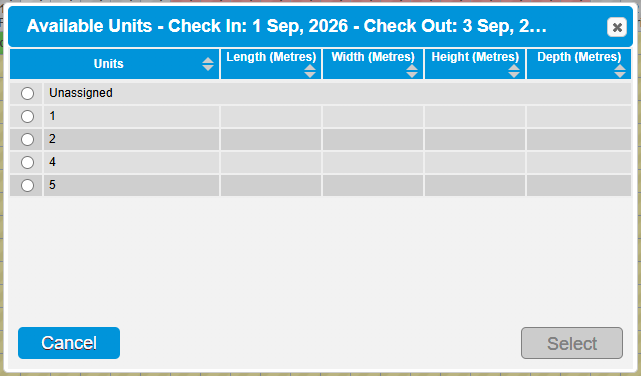
Clicking on the Unit link will allow you to assign/change the unit assigned to the booking. When clicked, only the available units for that date range will be available for selection. 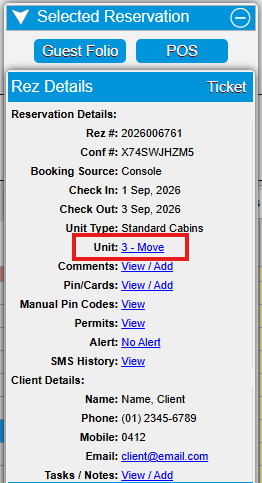
You can read or add any Comments onto the booking by clicking on the Comments link.
Any Alerts can be assigned to the booking; when assigned, the Alerts line will display as the associated alert colour for easy identification.
Pin/Cards: Security Gate pin codes will display.
Manual Pin Codes: Gate Codes will display.
Permits: Permits attached to the booking will display.
SMS History: Will display the SMS communication sent from the booking.
There is also an option to quickly email the customer by clicking on the email address link.
NOTE: This is not sending an email via RezExpert; your email provider configured on your computer will be sending the email.
Tasks/Notes: Will display the tasks and notes associated with the Client.
Troubleshooting
RezExpert is customizable to your business requirements. Any of the fields and payment options listed above may be different to your RezExpert configuration.