Overview
RezExpert Reports are available to help provide the key financial data for the business financial year/period.
These reports should be printed or run on the last day of the Financial year at the end of the business day.
No further RezExpert transactions for that day/Financial year are entered after the reports are printed.
Steps
Reports Location
- Click on any Menu button and select the Reports tab to view reports.
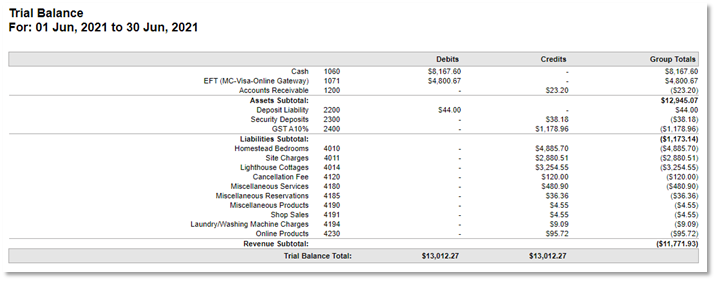
Trial Balance
- Report Category: Income
- Date Parameter: Select the dates of the financial year.
For example: Australia - Set from 1st July last year to 30th June this year. - Note: If your debits and credit columns don’t balance, a product is missing a GL Code.
Example:
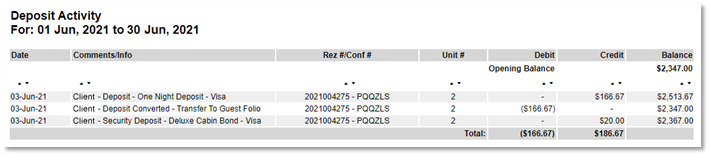
Deposit Activity
- Report Category: Administration
- Description: Displays a list of deposit liability debit and credit amounts created for a specified date range with the current balance held. This report lists the opening deposits held.
- Date Parameter: Select the dates of the financial year.
For example: For Australia - Set from 1st July last year to 30th June this year.
Example:
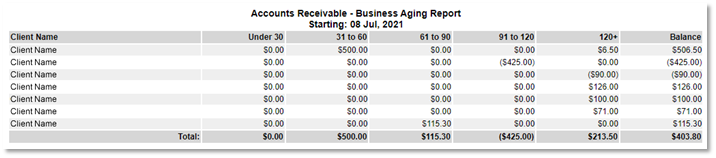
Account Receivable Balance
- Report Category: Manager
Alternatively, this report can also be printed within the Account Review/Aging panel. - Description: Displays aging for Accounts Receivable by specified business/person and date, separated by Days Aged as follows: <30, 31 - 60, 61 - 90, 121 - 150, 151+ days. This report lists outstanding debtors or clients in credit (deposits held from a canceled booking).
- Date Parameter: Set to the last date of the Financial year. For example: 30th June.
- Note: Your accountant will require this report.
Example:
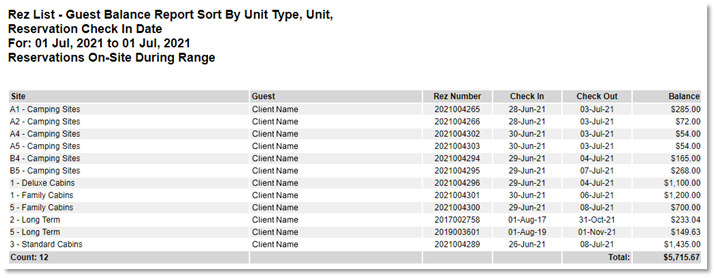
Rez List Guest Balance Sort By Unit Type, Unit, Reservation Check In Date
- Report Category: Reservations
Alternatively, Rez List reports can be located in the Arrivals/Departures Panel > General Tab > Print option. - Description: Reports confirmed and pending reservations (short and long term) and the current balance.
- Search Parameters: Start Date = Today’s Date; End Date = use Today’s Date to report balances as of ‘Today’.
Example:
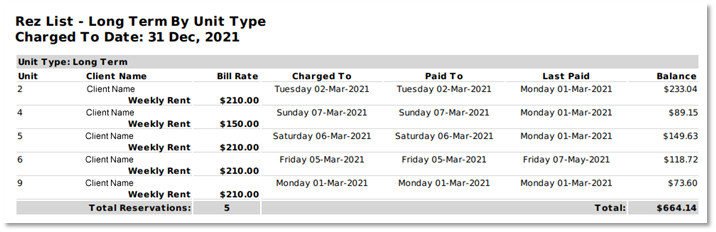
Rez List Long Term By Unit Type
- Report Category: Reservations > Rez List – Long Term by Unit Type
- Description: Reports all long-term policy reservations balances, lists billing rate, charged to date, paid to date, and date of last payment and current balance.
- Date Parameter:
Set to today’s date to display residents charged up to that date.
Set a future date such as 31st December to view all residents.
Example:
Troubleshooting
- If debits and credit columns in the Trial Balance do not balance, a product may be missing a GL Code.
Click on a Menu button, select the Setup tab and click on Product/GL Number Setup. Click Print to view which product(s) has not been assigned a GL Code.
Call the Support desk for assistance.