Overview
This document explains how to configure and use DPS Payment Express V2 in RezExpert. The procedures cover secure credit card tokens, saving credit card information without recording a payment, processing pre-authorisations, and refunding a completed payment.
Prerequisites
- Access to RezExpert with permission to open Business Setup and reservation Guest Folios.
- DPS Payment Express V2 enabled for the business.
- Existing Payment Express gateway information, such as the PXPay2 username and key, configured for the business.
- The Pre-Authorisation module is enabled by the DigitalRez Support desk when pre-authorisations are required.
Steps
1. Enable Payment Express V2
- Click Setup.
- Expand Business Setup > 1. Business Info.
- Open the Payment Gateways tab.
- In the Payment Gateway dropdown, select Payment Express V2.
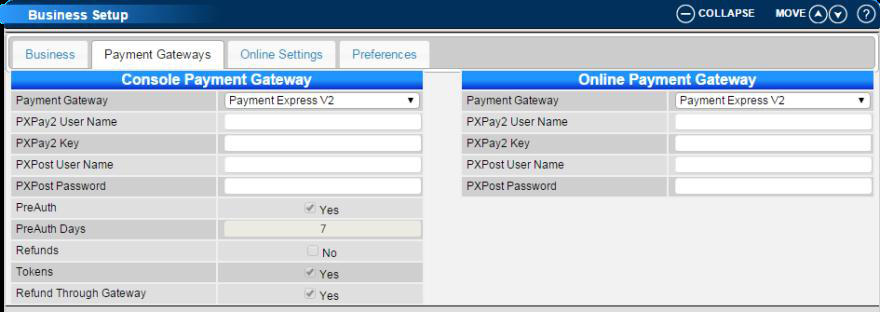
- Leave the existing gateway information, including the PXPay2 username and key, unchanged unless instructed otherwise.
- Log out of RezExpert and log back in to apply the change.
2. Use Credit Card Tokens
- Process a credit card payment or pre-authorisation, or save the card information to the Payment Gateway.
- Payment Express creates a token linked to the credit card.
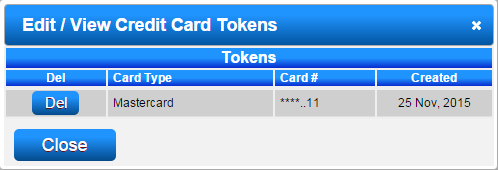
- When processing a later payment, select the saved credit card token instead of entering the card details again.

- Use the token to securely recharge the credit card while remaining PCI compliant.
3. Save Credit Card Information Without Processing a Payment
- Open the required reservation.
- Click the Charges/Payments tab.
- Click Payment Express.
- Select Save Credit Card Information To Payment Gateway.
- Proceed through the Payment Express credit card entry process.
- Payment Express processes a $1 pre-authorisation on the credit card. No payment is recorded on the reservation.
- The credit card details are securely stored as a token.
- The $1 pre-authorisation releases from the credit card after 7 days.
- To hold an amount greater than $1.00, process a standard pre-authorisation instead.
4. Process a Pre-Authorisation on a Credit Card
- Open the required reservation.
- Click the Charges/Payments tab.
- Click Payment Express.
- Select Preauthorisation.

- Select the required credit card type.
- Enter the pre-authorisation amount.
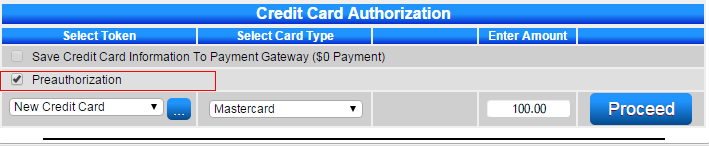
- Click Proceed and enter the credit card details.
- After the card is processed, confirm that the pre-authorisation amount and date appear on the Guest Folio and in the Charges/Payments tab.
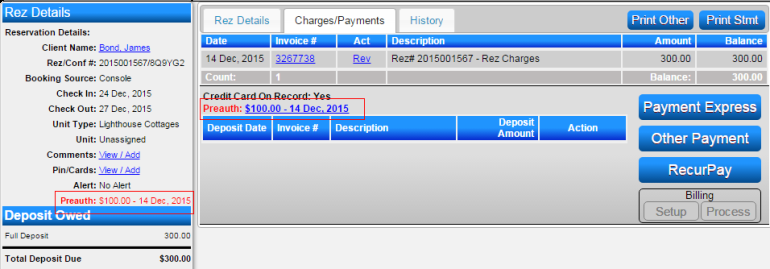
- The credit card details are stored securely as a token.
- The reserved amount is normally held for 7 days.
- When a later Guest Folio payment uses the pre-authorisation token, the reserved amount is applied and the pre-authorisation is cancelled.
5. Refund a Payment
- Locate the original payment on the reservation.
- Click the Chg link displayed to the left of the payment.
- Process the refund through the Payment Gateway.
- Refund the full original payment amount. DPS Payment Express does not support ad hoc partial refunds through this procedure.
Troubleshooting
- If Payment Express V2 options do not appear, verify that the gateway is enabled, then log out of RezExpert and log back in.
- If Preauthorisation is unavailable, contact the DigitalRez Support desk to have the Pre-Authorisation module enabled for the business.
- If a credit card token is not available, confirm that the card was successfully used for a payment, pre-authorisation, or saved to the Payment Gateway.
- If a refund cannot be processed, confirm that the original payment displays the Chg link and that the refund amount is the full original payment amount.
- A pre-authorisation can remain reserved for up to 7 days. Using its token for a later payment applies the reserved amount and cancels the pre-authorisation.