Overview
This document explains how to use the Add button within a reservation's Guest Folio. The feature allows a user to add a new or existing reservation to a single reservation to create a group booking, or to add another reservation to an existing group booking.
Prerequisites
- Access to the reservation's Guest Folio.
- Permission to create and modify reservations.
- The reservation number when adding an existing booking.
- An existing reservation with no payments previously applied, when using Add Existing Booking.
Steps
- Open the reservation's Guest Folio.
- Click the Add button.

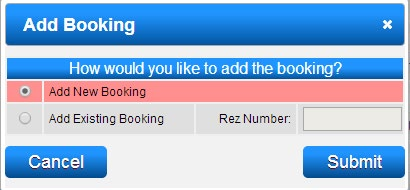
- In the Add Booking dialog, choose one of the following options:
- Add New Booking
- Add Existing Booking
Add a New Booking
- Select Add New Booking, then click Submit.
- The Booking Quote screen opens. Select the required reservation dates and unit type.
- Click Submit to finalize the reservation.
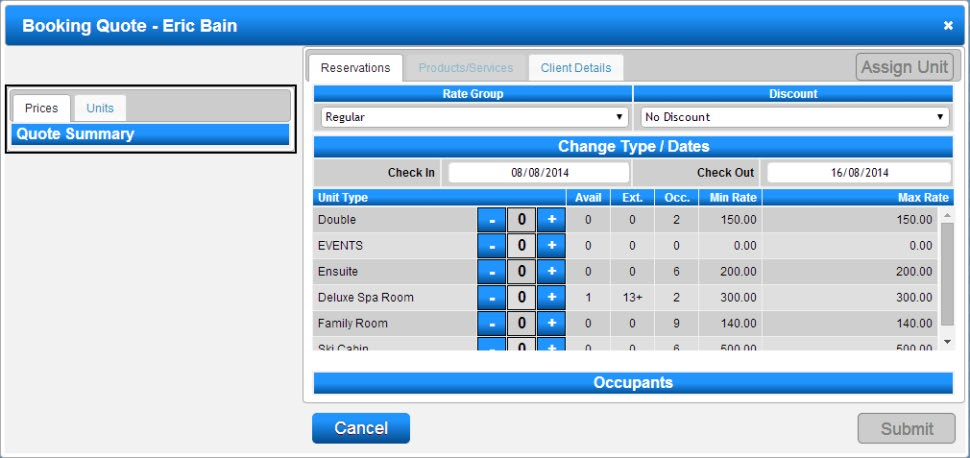
- The original single reservation is converted into a group reservation.
Add an Existing Booking
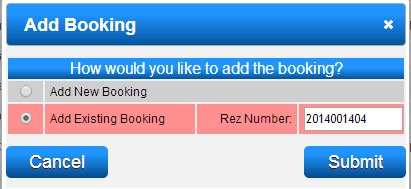
- Select Add Existing Booking.
- Enter the existing reservation's Rez Number, then click Submit.
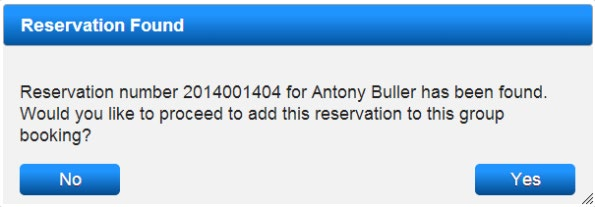
- When the reservation is found, verify that it is the correct reservation.
- Click Yes to add it to the group booking.
- Review the group reservation's Present Setting. Reservations grouped using this process default to Single Client/Multi-Account, but the setting can be adjusted when required.
Troubleshooting
- When charges for a new reservation must be edited, create the reservation separately, make the required charge changes before submitting it, and then use Add Existing Booking.
- An existing reservation cannot be added to the group if payments have already been applied to it.
- If the reservation is not found, verify that the correct Rez Number was entered.
- If the group does not use the required account arrangement, review and adjust the Present Setting.