Channel (OTA) Setup
Last modified on:
Setting up the Channel Provider - inputting your supplied Channel Provider number into RezExpert.
RezExpert connects to multiple Channel Managers such as RezChannel, Siteminder, TXA etc.
Contact DigitalRez to enable the Channel settings to enable your Channel into RezExpert.
Location
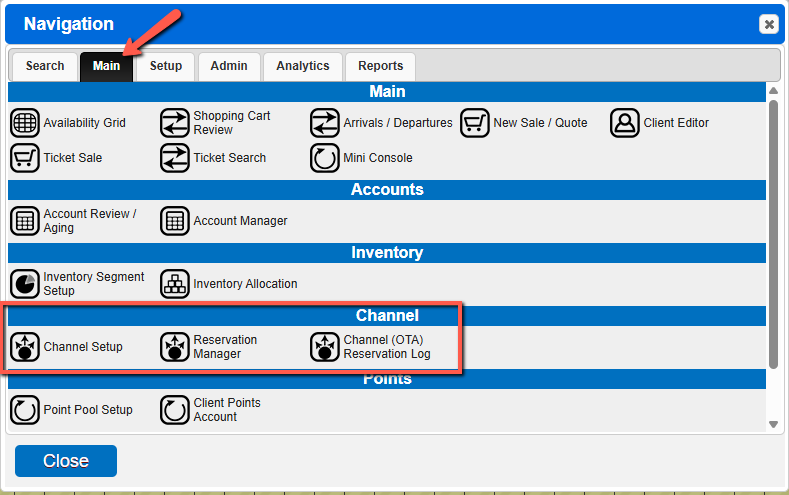
Click on a Menu button and click on Channel Setup, within the Main tab.
Your RezExpert technical support member will have entered your Channel Provider details.
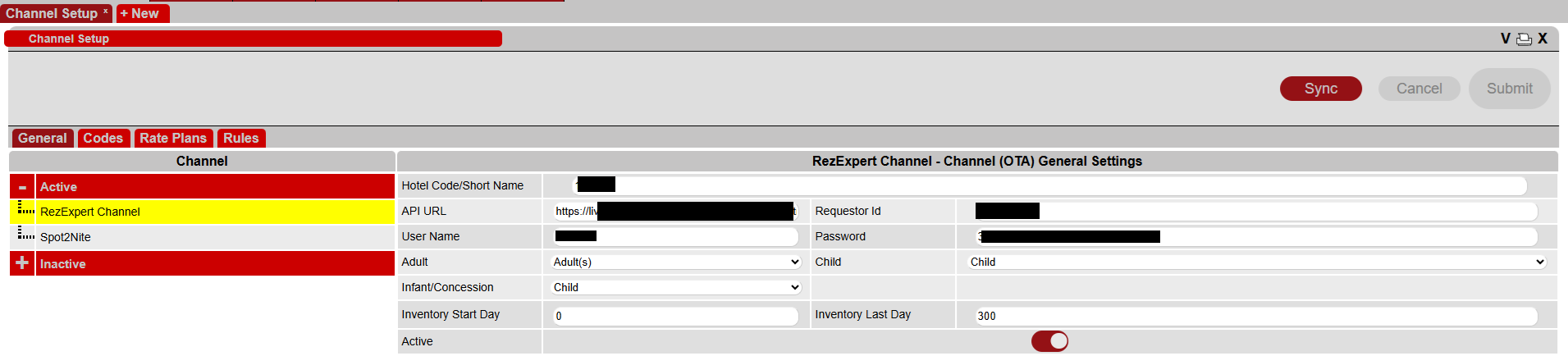
Inventory Start Day: This setting acts like the Booking Rule - Minimum Days in Advance.
Value = 0 will allow customers to book to arrive today; adjust the value if there is a minimum number of days required.
Inventory Last Day: This setting acts like the Booking Rule - Maximum Days in Advance.
By default, Channel Providers will automatically allow 365 days in advance.
Depending on the Channel Provider enabled, text sections are available to enter in business text for the selected areas within the Channel Provider.
- Tax Invoice Message
- Booking Terms
- Conditions of Use
Codes
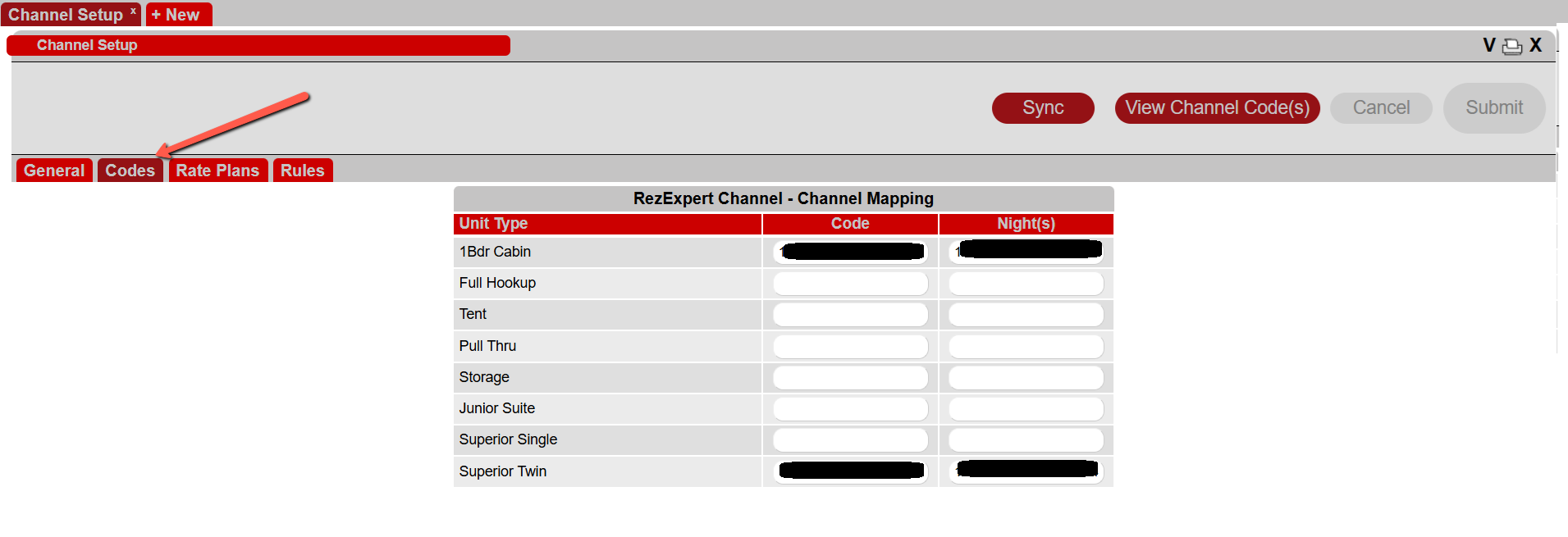
The Codes tab will contain a list of all the Unit Types. The Unit Types that have the applicable codes entered will be mapped to the Channel Manager.
If the time period is set then the rates will also be relayed to the Channel Manager.
Rate Plans
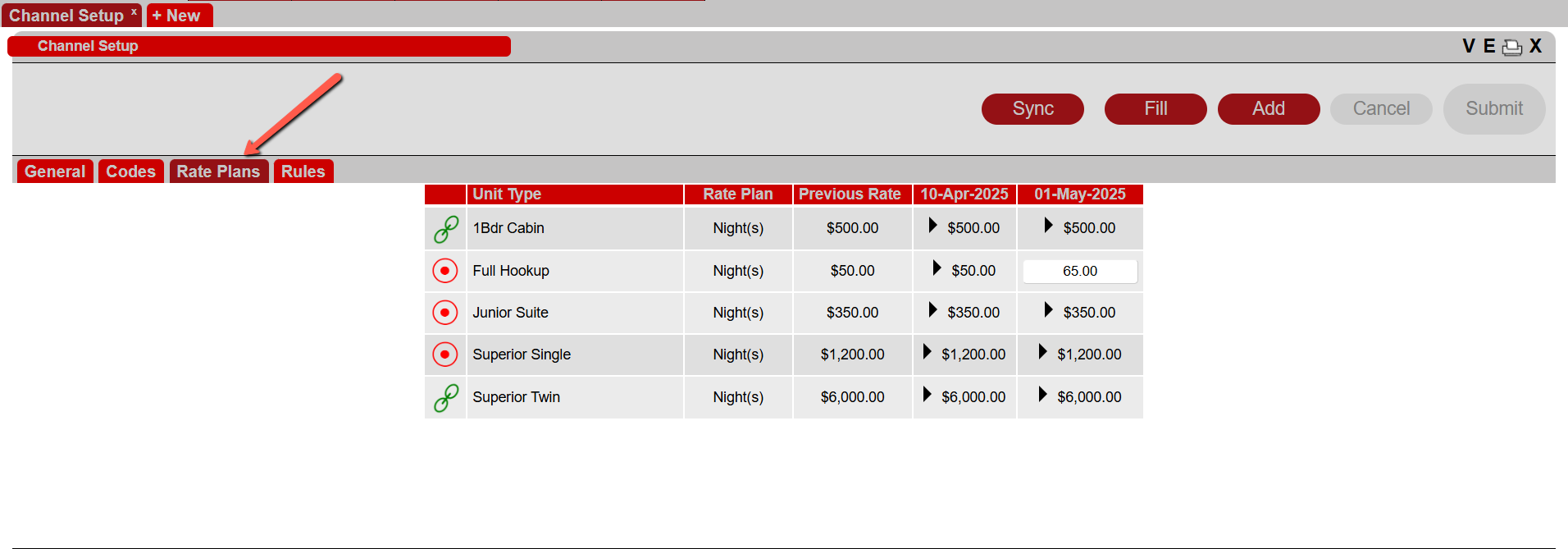
The Rate Plans tab will allow you to control/map the rates from RezExpert to the Channel Manager. By default it will show the current year but can review upcoming years by modifying the year option to the bottom.
Based on the Units that have been mapped from the Codes section, the Unit Types will be listed.
By clicking on the images to the left of the Unit Type, a user can either link/unlink the rates with what have been configured within RezExpert or manually manage the rates.
This indicates that the rates have been linked with the configured rates in RezExpert

This indicated that the rates are unlinked a user can manually modify the rates
When the rates are linked, the rates will pull from the selected Rate Group in RezExpert to the Channel Manager. Any changes to the rates (in that Rate Group) in Rates Setup will automatically be reflected into the Channel Manager.
When the rates are not linked, the rates will need to be entered directly into the Rate Plan area if the Time Period is mapped or would have to update the Channel Manager directly. Any changes to the rates in Rates Setup will not be reflected into the Channel Manager.
Buttons
Sync
This will initiate a synchronization between RezExpert and the Channel Manager, to send/receive any modifications that have been completed since the last time synchronized.
Fill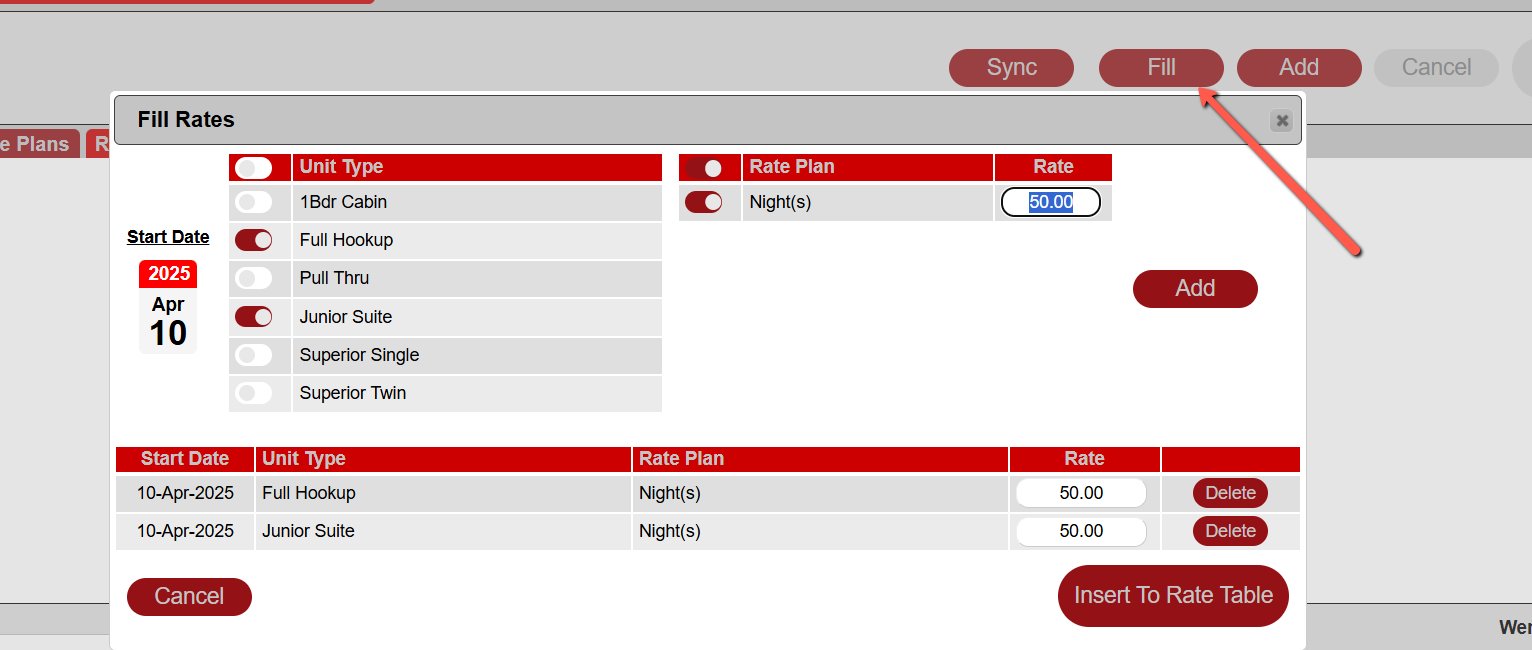
This allows a user to update multiple unlinked Unit Types with rates in bulk by selecting the Start Date, Unit Types and entering the desired rate.
Add
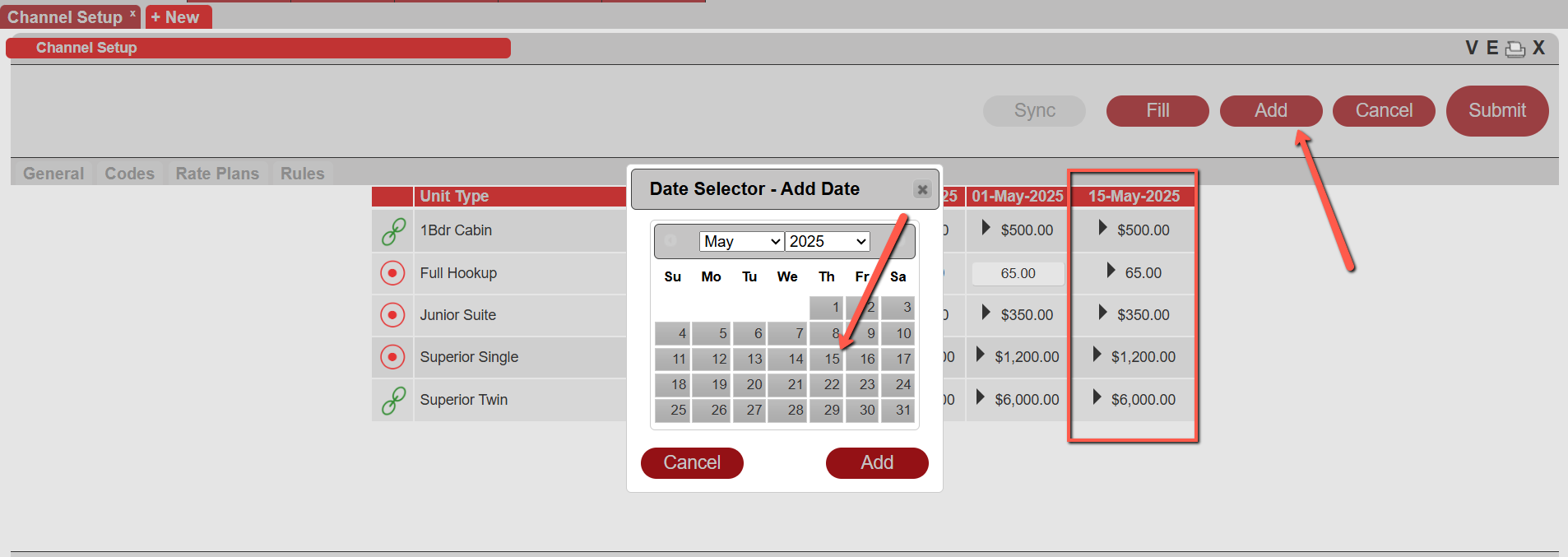
By clicking the Add button, this will provide a calendar to allow the user to enter a manual rate change option for any unlinked Unit Types. Once added the user can then click on the rate and set a custom rate for that start date
Rules
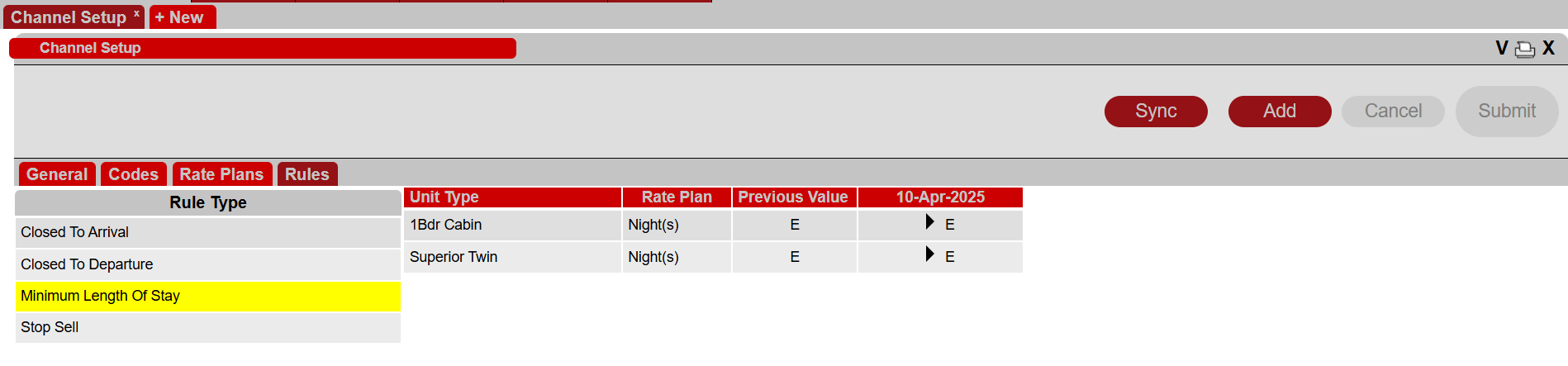
The Rules tab will allow you to setup and configure basic rules to map to the Channel Provider.
Rules:
- Closed on Arrival - Restrict Arrivals on the selected date(s)
- Closed to Departures - Restrict Departures on the selected date(s)
- Minimum Length of Stay - Set the minimum stay requirement for the selected date(s)
- Stop Sell - Restrict bookings on the selected date(s)